Halloween AI studio · photo edit
Halloween photo editor for costumes, fog and candlelight
This page is for the photo you already took. Keep the costume, pose and face, then change the background, the light and the atmosphere. It is the opposite of a costume generator: less invention, more finishing. Use it when the outfit is right and the room is wrong.
Keep the costume · change the scene
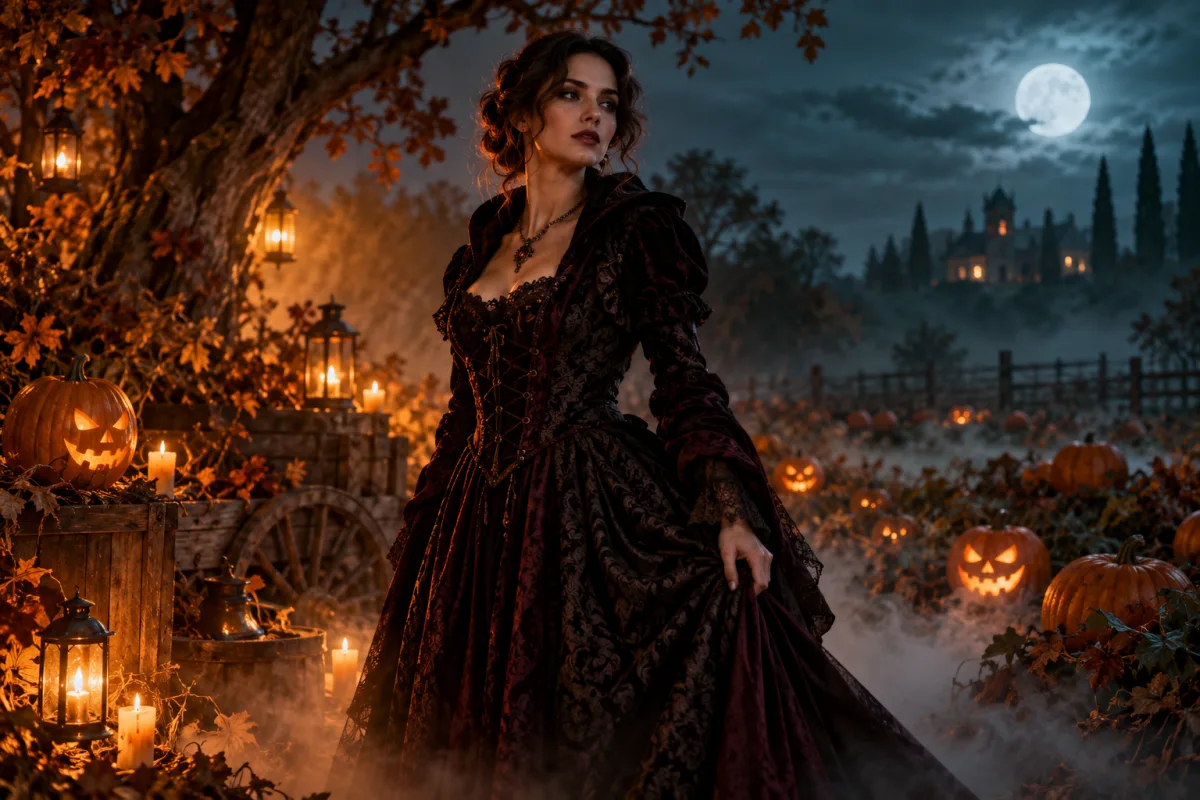
Try this look
Upload a photo and generate
Keep your face, change the costume and scene. Review the prompt before you spend a credit.
The preview stays on your device until you generate. PrintJoy does not publish your photo.
Prompt
The prompt behind this look
The edit prompt is in English for model accuracy. Keep the “preserve” sentence intact if you change the background.
Image edit prompt
Use the uploaded photo as the exact base image. Keep the person, costume, pose and facial identity unchanged. Replace only the background with a foggy pumpkin patch at dusk, add warm candlelight from the left, cool moonlight from the right, and a thin layer of ground mist. Grade the image with deep amber highlights and muted teal shadows while keeping natural skin tones. Preserve existing fabric details and jewelry. Do not add or remove people, change the costume, reshape the face, add text, logos or watermarks.
Video motion prompt
Use the provided image as the exact visual reference. Create a five-second cinematic Halloween photo animation. Keep the person, costume and face unchanged. Add drifting ground fog, a gentle candle flicker on the left, and a slow camera push-in. The subject blinks once and turns their eyes toward the light without changing pose. Keep anatomy stable, lighting consistent and motion subtle. No scene cuts, no new characters, no text or watermarks.
Avoid
changed costume, different face, extra people, extra limbs, warped hands, fake orange glow on skin, crushed shadows, text, logo, watermark, harsh HDR
What you can edit without changing the costume
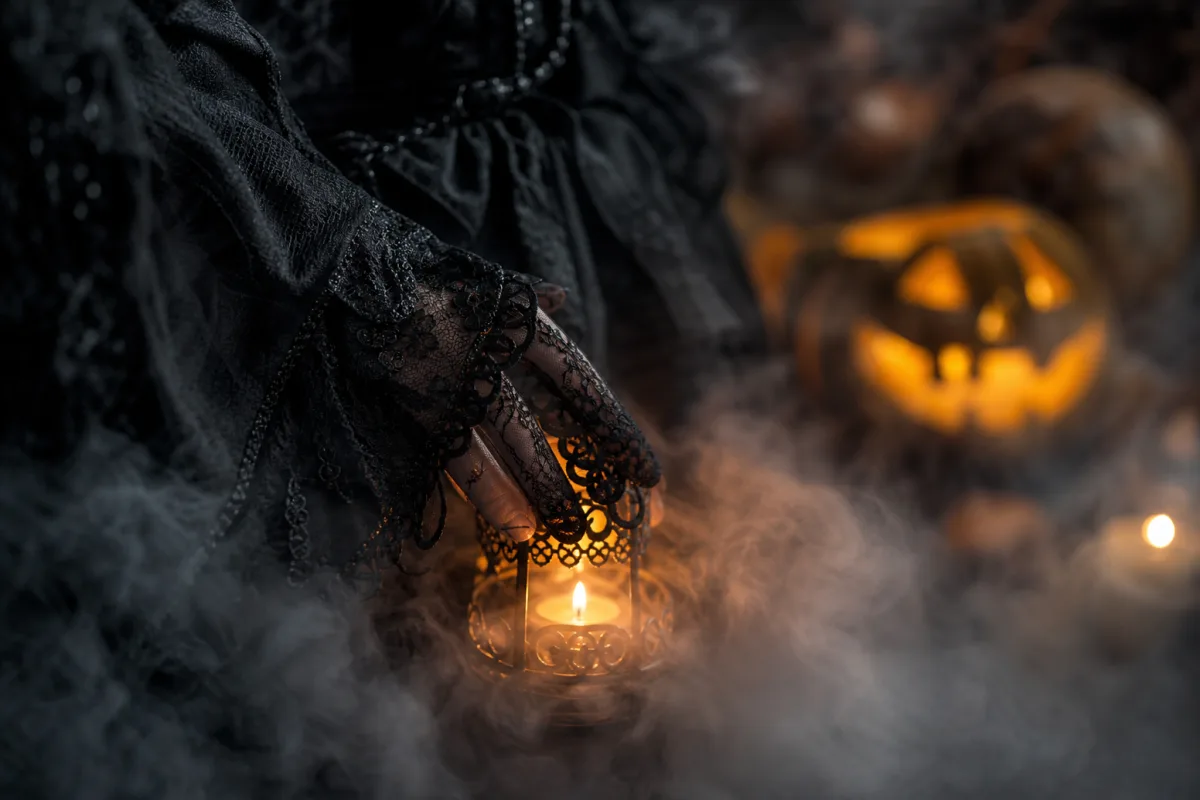
The editor is strongest when it changes the environment and the light, not the person. A plain living-room photo can become a foggy pumpkin patch, a candlelit parlor, a mossy forest or a stone porch. The costume stays the same, which matters when you have already spent time on makeup, props or a group theme. The prompt on this page explicitly locks the person, pose and clothing before it describes the new background.
Small fixes are also fair game: remove a bright doorway behind the subject, replace a distracting sign, add mist at the ankles, or warm the light so the photo matches the rest of an album. What the editor should not do is invent a different outfit. If you ask for a new costume and a new background at the same time, the model has two jobs and usually does one of them badly.
Fog, candlelight and background swaps
Fog is the safest atmosphere change because it sits behind and around the subject without covering the face. Ask for ground mist, not a wall of smoke. Candlelight is the safest color change because it gives a clear direction: warm from one side, cool from the other. A prompt that names both directions produces a more believable portrait than a generic request for a Halloween mood.
Background swaps work best when the new scene has a similar depth to the original. A photo taken against a flat wall can become a forest because the model only has to invent what is behind the person. A photo taken in a cluttered room is harder, because the model must decide which edges belong to the person and which belong to the room. Crop tight before uploading if the background is busy.
Editing a photo you already took
Upload the largest version you have, not a screenshot from a social app. The model needs skin texture, fabric weave and hair edges to keep the person looking like the person. If the original is underexposed, brighten it slightly before uploading; the editor can add light, but it cannot recover detail that was never recorded. Keep the crop natural and avoid extreme angles.
If the costume has thin straps, sequins, lace or face paint, check those areas first. These are the details models simplify. A second pass with a narrower prompt, such as “preserve the lace collar exactly,” can help. If the face changes, stop editing and start again from the original; repeated edits on top of edits tend to soften identity and accumulate artifacts.
Making a printable photo card
A finished edit can become a Halloween card, a party sign or a page for a family album. Download the PNG, then place it in a layout that leaves a white margin for printing. For a small treat tag, use the free tag maker and keep the printed message away from the face. For a larger print, check the image at 100% zoom before you send it to a printer; a portrait that looks sharp on a phone can show soft eyes on paper.
The page does not add text inside the image. That is deliberate: image models still garble names, dates and small type. Add the words in a browser layout or a design app, where the spelling is yours. The result is a cleaner print and a page that can be reused next year with a new photo and the same layout.
When to regenerate instead of edit
Edit when the person and costume are right and the scene is wrong. Regenerate when the pose is wrong, the face is turned away, or the costume is the thing you want to change. Editing cannot reliably rotate a body, open a closed hand or rebuild a costume that is mostly hidden. Those are generation problems, not finishing problems.
If you are unsure, make one edit and compare it with the original at thumbnail size. If the silhouette still reads, the edit worked. If the costume has become a different costume, go back to the costume generator page and start from a cleaner portrait. That decision saves more credits than any prompt tweak.
FAQ
Can I edit a Halloween photo I already took?
Yes. Upload the original photo and describe the background, light or atmosphere you want. The prompt keeps the costume, pose and face unchanged so the edit finishes the photo instead of replacing it.
Will the editor change my costume?
It should not. The prompt locks the person, pose and clothing before describing the new scene. If the costume still changes, start again from the original and shorten the background description.
Can I remove people or objects from the background?
Simple distractions such as a doorway or a sign can often be replaced with fog, foliage or a wall. Complex removals around hair and hands are less reliable. Crop first, then edit.
Does the photo leave my device?
The preview stays in your browser until you press generate. Generating sends the image to the image provider for that request. PrintJoy does not publish your photo or use it as a public example.
Can I print the edited photo?
Yes. Download the PNG and print it at home or through a print shop. Check the eyes, hands and costume edges at 100% before making a large print.
Related looks
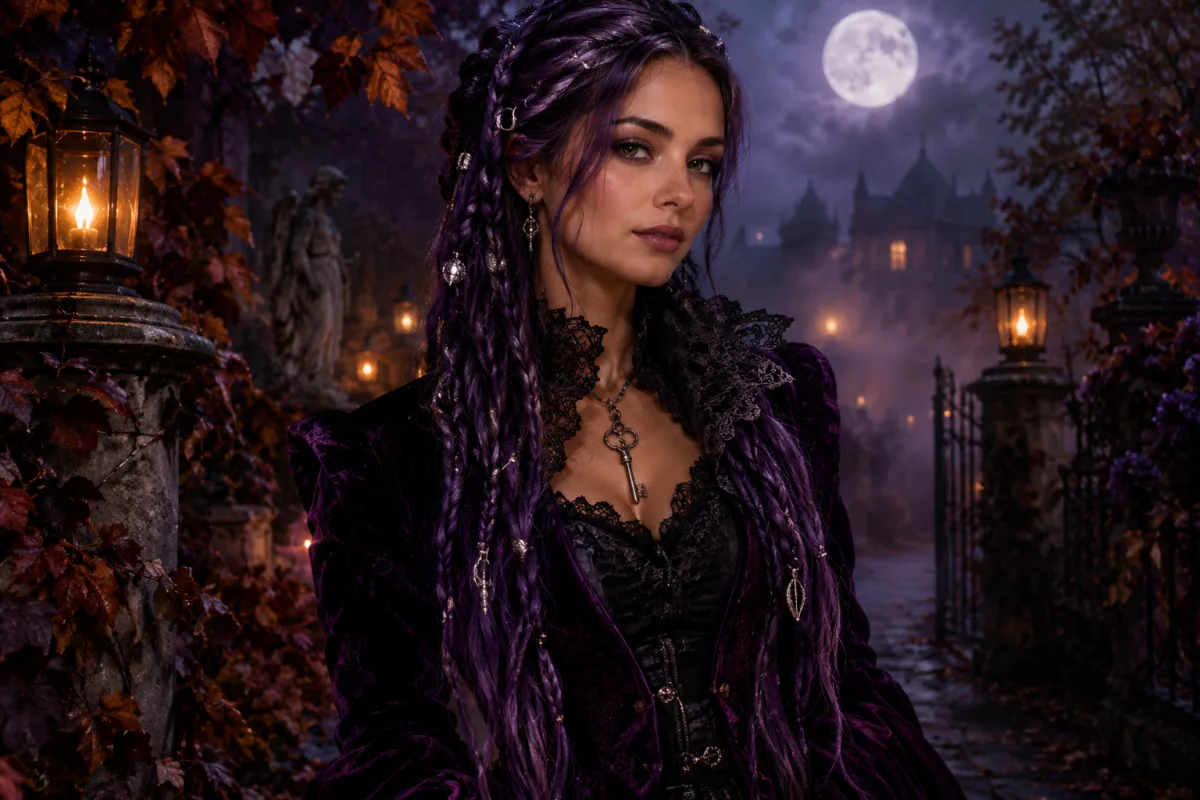
AI Halloween costume generator: turn one selfie into a costume portrait
Turn one clear selfie into an original Halloween costume portrait. Keep your face, choose the look, edit the prompt, and download a print-ready image.
Halloween AI studio · photo edit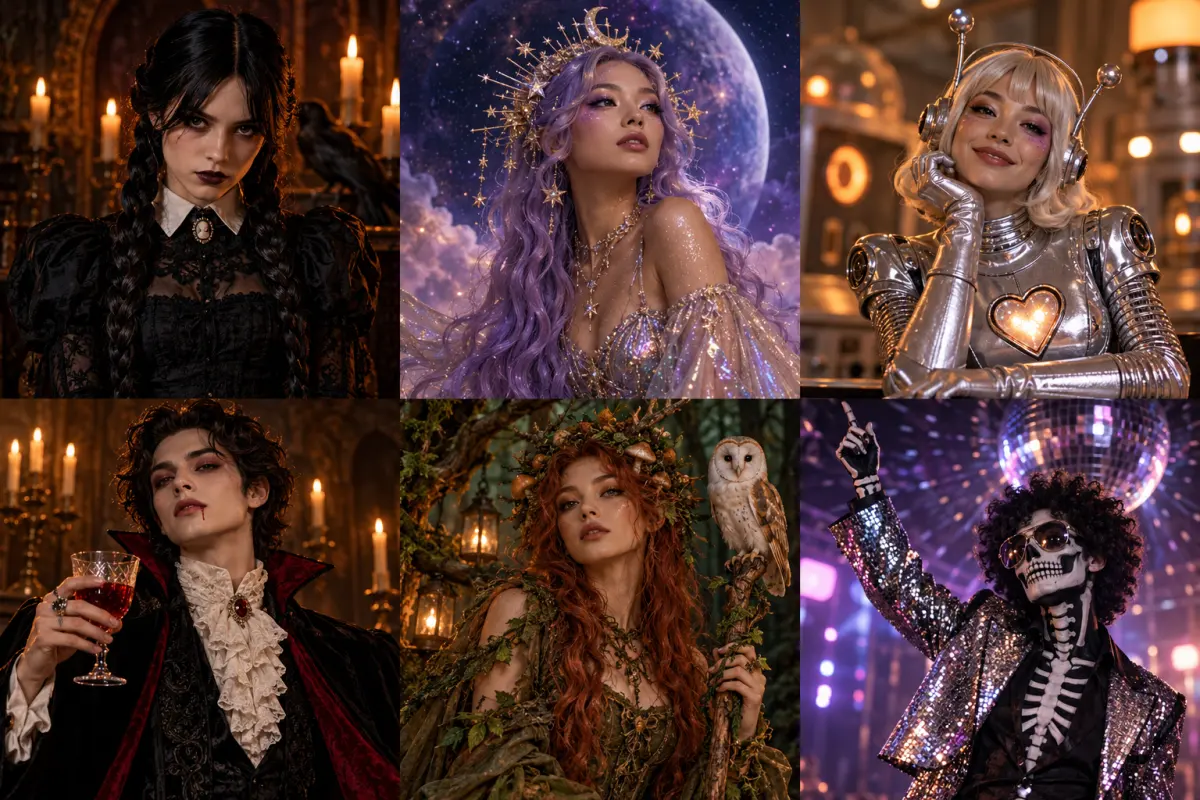
Halloween AI prompts you can paste into Gemini or ChatGPT
Copy-paste Halloween AI prompts for Gemini, ChatGPT and image editors. Costume, pet, couple and video prompts plus the negative words that prevent failures.
Halloween AI studio · prompt library
Halloween treat tag maker with AI art and a real print layout
Make Halloween treat tags with AI art and a free browser layout. Generate a friendly portrait, add a name, and print a 300 dpi PDF or PNG at home.
Halloween AI studio · printLast updated
Third-party search figures are estimates, not guarantees of traffic or ranking.