Halloween AI studio · print
Halloween treat tag maker with AI art and a real print layout
A treat tag needs two things: artwork that reads at tag size and a clean space for the name. This page generates the artwork, then hands it to the free browser tag maker, where you add the message and download a 300 dpi PDF or PNG for US Letter or A4 paper.
AI art · free print layout

Try this look
Upload a photo and generate
Keep your face, change the costume and scene. Review the prompt before you spend a credit.
The preview stays on your device until you generate. PrintJoy does not publish your photo.
Prompt
The prompt behind this look
The prompt asks for a clean third of the image and no text. Keep both constraints; the tag maker adds the words.
Image edit prompt
Use the uploaded photo as the primary reference. Preserve the subject's face, skin tone and body proportions. Create a warm Halloween treat-tag illustration: the subject as a friendly vintage vampire in a deep burgundy coat, holding a small paper treat bag, with bats and candy corn floating in the background. Leave a clean empty area of at least one third of the image for a printed message. Rich autumn palette, soft candlelight, storybook-meets-editorial photography. One person. Do not add text, logos, watermarks, extra people or distorted hands.
Video motion prompt
Use the provided image as the exact visual reference. Create a five-second Halloween treat-tag animation. Keep the face, costume and body proportions consistent. The subject smiles slightly, the paper bag rustles, a bat crosses the background once, and candlelight flickers. The clean message area stays empty. Slow push-in. No text, no extra people, no costume change, no scene cut.
Avoid
garbled text, fake letters, logo, watermark, extra people, distorted hands, extra fingers, costume change, busy background, gore
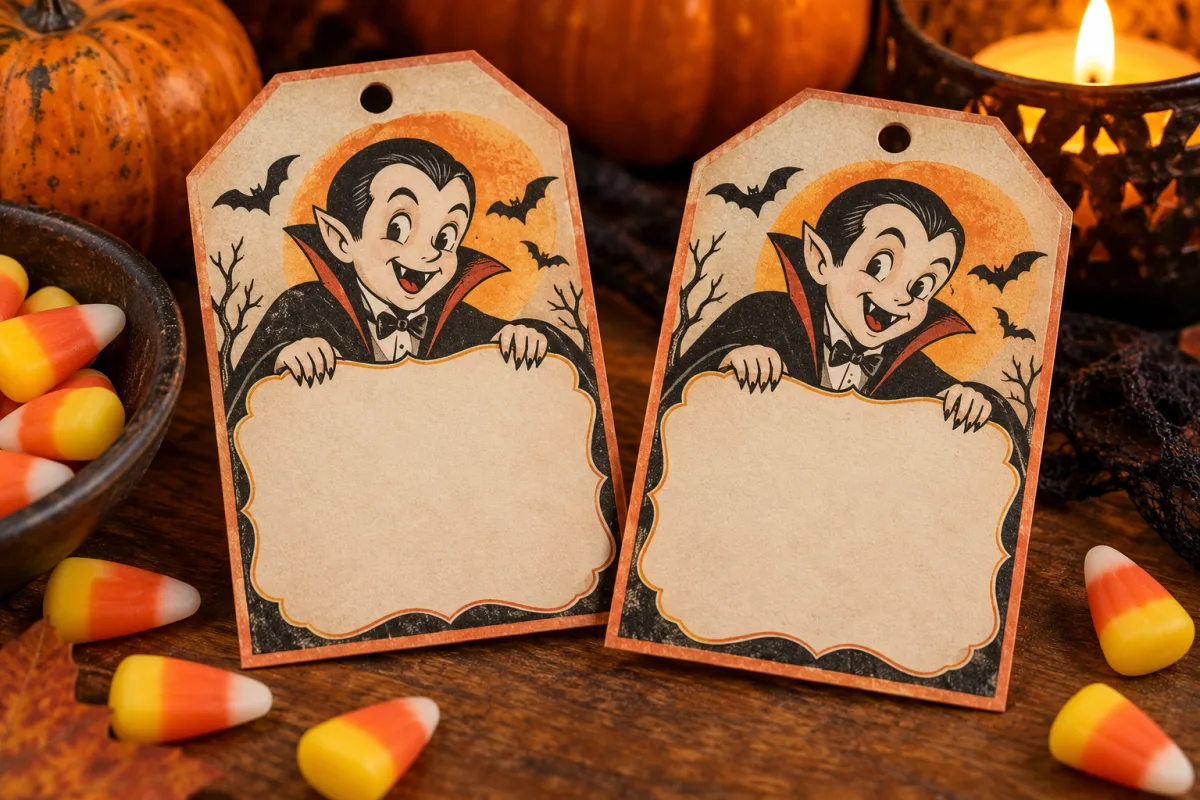
Make the text tag in the browser
The studio above generates the portrait. The free layout below creates the text tag with the name and message: choose the paper size, export at 300 dpi and cut. To put the portrait on the tag itself, download the PNG and place it in your design app; the words stay exact.

300 dpi output · US Letter 8.5 x 11 in. Layout and downloads stay on this device. PDF includes every page; PNG includes the selected page. Print at 100%, with printer scaling off.
Artwork first, text second
Image models still struggle with small type. A generated tag that tries to spell a name often produces letters that look right at thumbnail size and wrong at print size. The prompt on this page therefore asks for a clean empty area of at least one third of the image and explicitly forbids text. You add the name in the browser layout, where the spelling is exact and the font is consistent across every tag.
The empty area should sit on one side, not in the middle of the face. A vertical tag usually works best with the portrait on the left and the message on the right, or the portrait at the top and the message at the bottom. Generate at a portrait aspect ratio and leave more space than you think you need; the layout can crop, but it cannot invent margin.
Sizes that print at home
The free tag maker exports a 300 dpi PDF or PNG for US Letter or A4 paper. A treat tag is usually small, so several tags fit on one sheet. Keep the finished tag at least 2.5 inches wide so the name is readable, and leave a white border for cutting. If you are attaching the tag to a bag, punch a hole in the top margin, not through the artwork.
Print at Actual Size or 100% and disable fit-to-page. A tag that prints at 90% may still look fine on screen but will not fit the bag. Check one test sheet with a ruler before printing a classroom set. Ordinary cardstock works for most home printers; check the printer’s paper-weight limit before using heavy stock.
A prompt that leaves room for type
The prompt names the costume, the prop, the background and the empty area. The prop matters: a subject holding a small paper bag gives the composition a reason to have a lower corner free. The background is deliberately simple, with bats and candy corn floating at the edges, so the message area stays quiet. A busy background makes the text unreadable even when the layout is correct.
If the generated image has no clean area, do not add text over the face. Regenerate with a stronger instruction: “leave the right third empty, plain dark background, no objects.” You can also crop the image in the layout. The goal is a tag that looks designed, not a photo with a name stamped on top.
Matching the tag to the party
A friendly vintage vampire works for a mixed-age party; a pumpkin or a friendly ghost works for a classroom; a pet portrait works for a neighborhood dog treat bag. The tag should match the treat, not just the holiday. If the bag holds candy, keep the artwork light and the message short. If the bag holds a small toy, you can use a darker, more editorial image.
Use one portrait for every tag in a set, or generate one per child. One portrait keeps the set coherent and is faster; individual portraits make the tags feel personal but take more credits. For a classroom, a single friendly design with each child’s name in the layout is usually the best balance.
Print and share
Download the PDF for printing and the PNG for sharing. The PDF keeps the physical page size; the PNG is useful for a group chat or a party planning document. Check the name spelling, the fold line and the cut line before printing a full sheet. If you are making a set, print one sheet, cut one tag and test it on a real bag before printing the rest.
The AI image and the tag layout are separate steps on purpose. You can reuse the layout next year with a new portrait, or reuse the portrait with a different message. That is the practical advantage of a print workflow over a one-click card: the words stay editable and the artwork stays yours.
FAQ
How do I make Halloween treat tags?
Generate a portrait with a clean empty area, open the free tag maker, add the name and message, then download a 300 dpi PDF or PNG for US Letter or A4. Print at Actual Size and cut along the guide.
Can I add the name with AI instead?
You can try, but small type is unreliable. The page asks the model to leave the image text-free and adds the name in the browser layout, where the spelling and font are exact.
What size should a treat tag be?
At least 2.5 inches wide for a readable name, with a white border for cutting and a hole in the top margin. Several tags fit on one US Letter or A4 sheet.
Can I print the tags at home?
Yes. Use the PDF, select Actual Size or 100%, disable fit-to-page, and print on cardstock that your printer supports. Print one test sheet before making a classroom set.
Can I use the tags commercially?
For a personal party or classroom, yes. For a product you sell, use your own original artwork and check the rights of any character or likeness. The AI image does not grant a license to a protected character.
Related looks

AI Halloween costume generator: turn one selfie into a costume portrait
Turn one clear selfie into an original Halloween costume portrait. Keep your face, choose the look, edit the prompt, and download a print-ready image.
Halloween AI studio · photo edit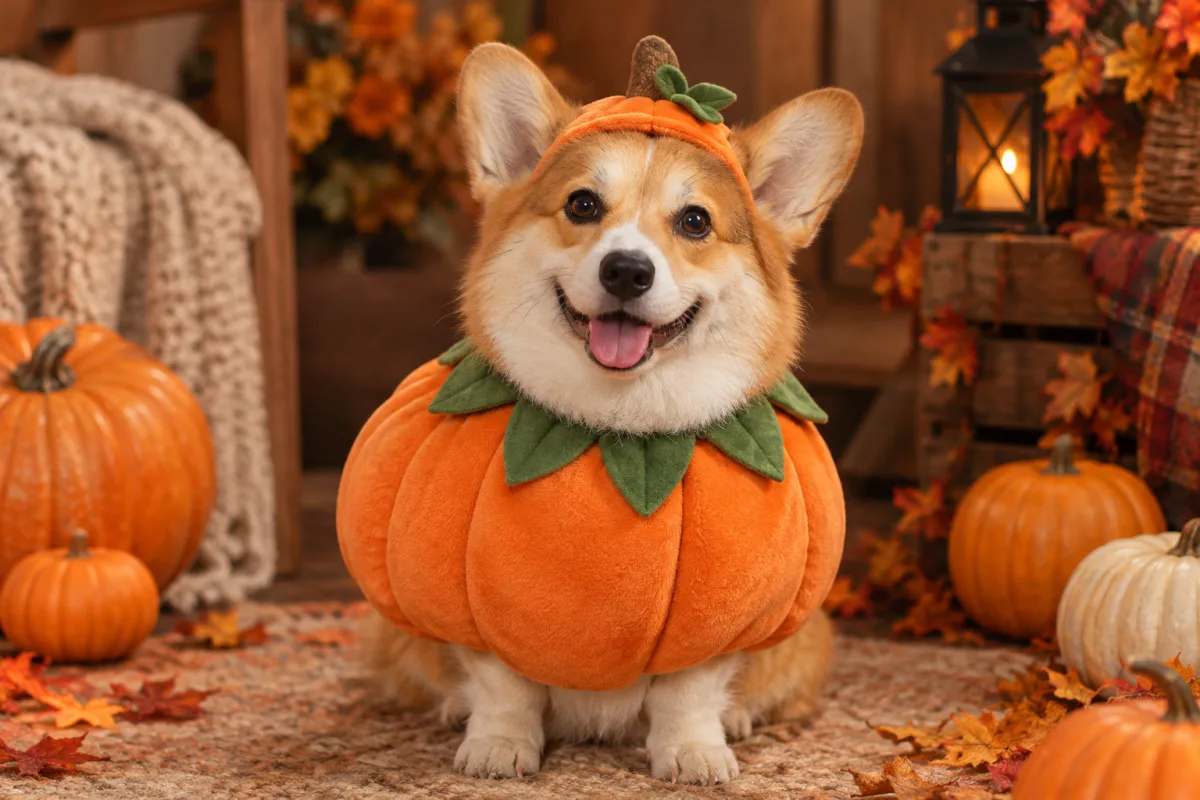
Pet Halloween costume generator for dogs and cats
Turn a dog or cat photo into a Halloween costume portrait. Keep the breed, fur and eyes, and try a pumpkin, dinosaur or baked-potato look in seconds.
Halloween AI studio · pet portrait
Halloween photo editor for costumes, fog and candlelight
Edit an existing Halloween photo: swap the background, add fog and candlelight, and keep the costume and face unchanged. Download a print-ready image.
Halloween AI studio · photo editLast updated
Third-party search figures are estimates, not guarantees of traffic or ranking.